
Permission transparency
How Phone Operator works
Phone Operator works without root on Android 8+. Its Accessibility Service executes only user-configured gestures after you start them. The overlay is used for controls and markers, so you can position an action and keep Start, Pause, and Stop available above the target app.
Phone Operator does not collect, store, or upload screen content. Action positions, timing, ranges, and saved scripts remain on the device. Review the full privacy policy before enabling permissions.
Start deliberately
Practical steps
- 1Enable the two permissionsFollow the in-app guide to enable Phone Operator in Accessibility and allow Display over other apps.
- 2Add one tapStart with the free unlimited single-point action before building a more complex routine.
- 3Place and tune itMove the marker to the target, then set its interval, visible range, initial delay, and optional run limit.
- 4Run under supervisionSwitch to the target app, recheck the marker, and start from the floating controller only when the screen is ready.
Precision
Keep the action area visible
The tap marker represents the configured action area. Increasing the random range increases the visible circle, and generated tap points remain within that boundary. Begin with a small range that fits entirely inside the intended control.
Every action can use its own interval and delay. A finite repeat count is useful for a known task; the default unlimited count is better reserved for a run you will actively supervise and stop yourself.
Advanced routines
Add swipes only after one tap works
Phone Operator supports upward, downward, left, and right swipes. The overlay shows the configured direction and distance while the marker itself remains stationary during playback.
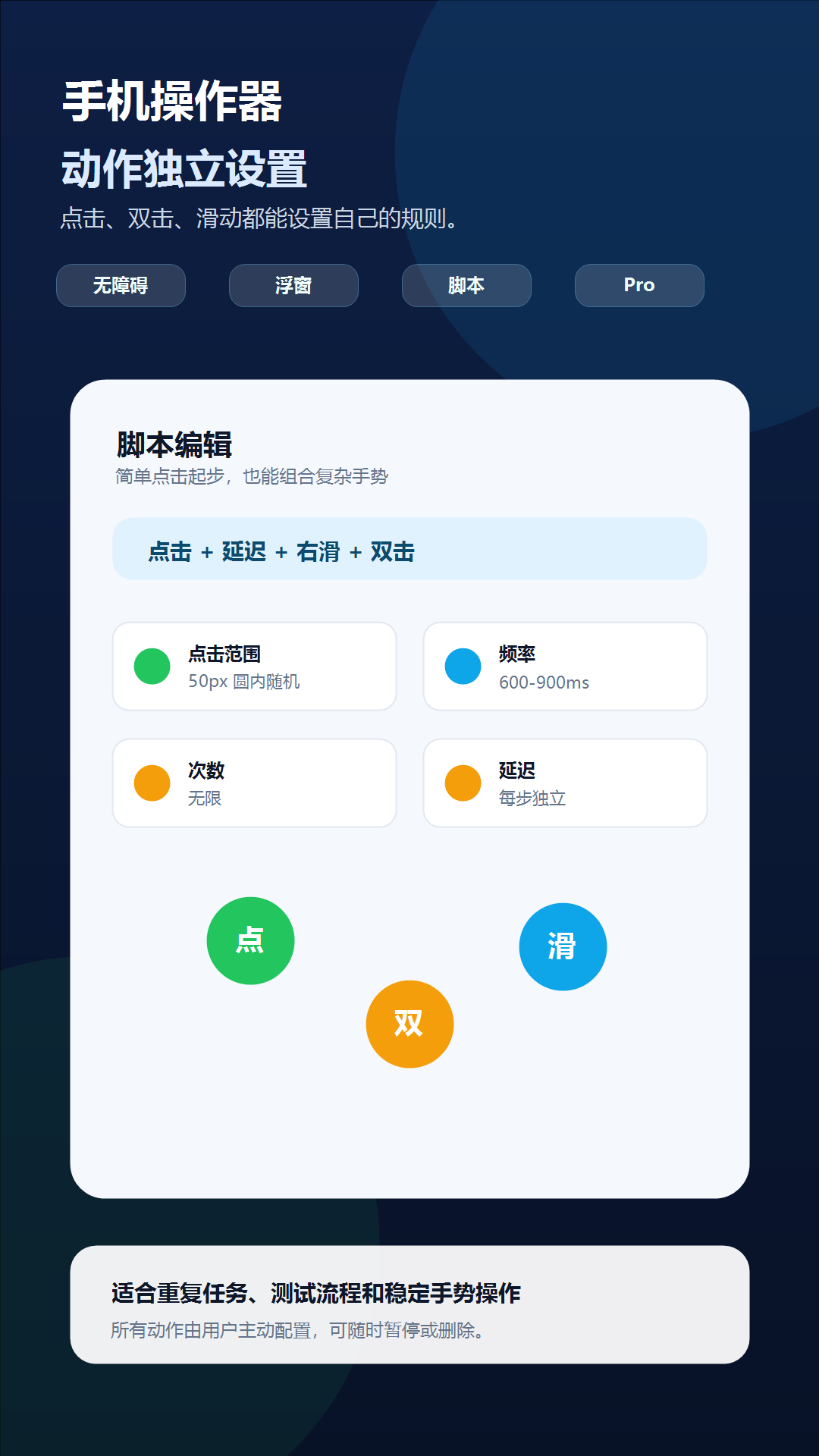
Pro scripts can order taps, double taps, directional swipes, and per-step delays. Validate each action by itself before combining them, because a slow page transition can change where the next gesture lands.
Check one variable at a time
Troubleshooting
- Confirm Phone Operator still appears as enabled under Android Accessibility settings.
- Confirm the floating controller is visible and Display over other apps remains allowed.
- Move markers away from system navigation areas and any protected screen.
- Increase the interval when the target interface needs more time to update.
- After an Android update or permission reset, reopen Phone Operator and review both permissions.
Safety boundary
Use automation responsibly
No-root access does not remove the need for supervision. Review the target screen before starting and keep the stop control reachable.
Do not automate payment, purchase, transfer, account-security, privacy-consent, or CAPTCHA screens. Do not use Phone Operator for fake engagement, cheating, bypassing safeguards, or any action that violates the rules of the target app. Stop whenever the screen is different from the one you tested.
Common questions
Questions about auto click without rooting your phone
Does an Android auto clicker require root?
No. Phone Operator supports Android 8+ and uses Accessibility Service after you explicitly enable it.
Can each tap use different settings?
Yes. Actions can have independent timing, delay, repeat count, and visible tap range.
Can a script combine taps and swipes?
Yes. Pro scripts can mix taps, double taps, directional swipes, and delays. Free mode provides unlimited single-point clicking.