
Permission transparency
How Phone Operator works
Phone Operator works without root on Android 8+. Its Accessibility Service executes only user-configured gestures after you start them. The overlay is used for controls and markers, so you can position an action and keep Start, Pause, and Stop available above the target app.
Phone Operator does not collect, store, or upload screen content. Action positions, timing, ranges, and saved scripts remain on the device. Review the full privacy policy before enabling permissions.
Start deliberately
Practical steps
- 1Choose the directionUse up or down for vertical scrolling and left or right for horizontal pages, carousels, or test flows.
- 2Place the start markerKeep it inside a scrollable region and away from screen edges, navigation gestures, buttons, and text fields.
- 3Set distance and durationStart with a moderate distance and duration, then test one swipe to see how the target app interprets it.
- 4Add a delayAllow content loading or page snapping to finish before the next swipe or tap begins.
Gesture geometry
Distance and duration change the result
A short swipe may nudge a list, while a longer one may advance much farther. Duration also matters: some interfaces interpret a very slow movement as a drag and a fast movement as a fling. Test the smallest useful gesture first.
Phone Operator shows a directional marker sized to the configured swipe length. During playback, the overlay does not animate the marker along the path, so the controls stay in place and do not obscure the moving content.
Mixed scripts
Wait before tapping content revealed by a swipe
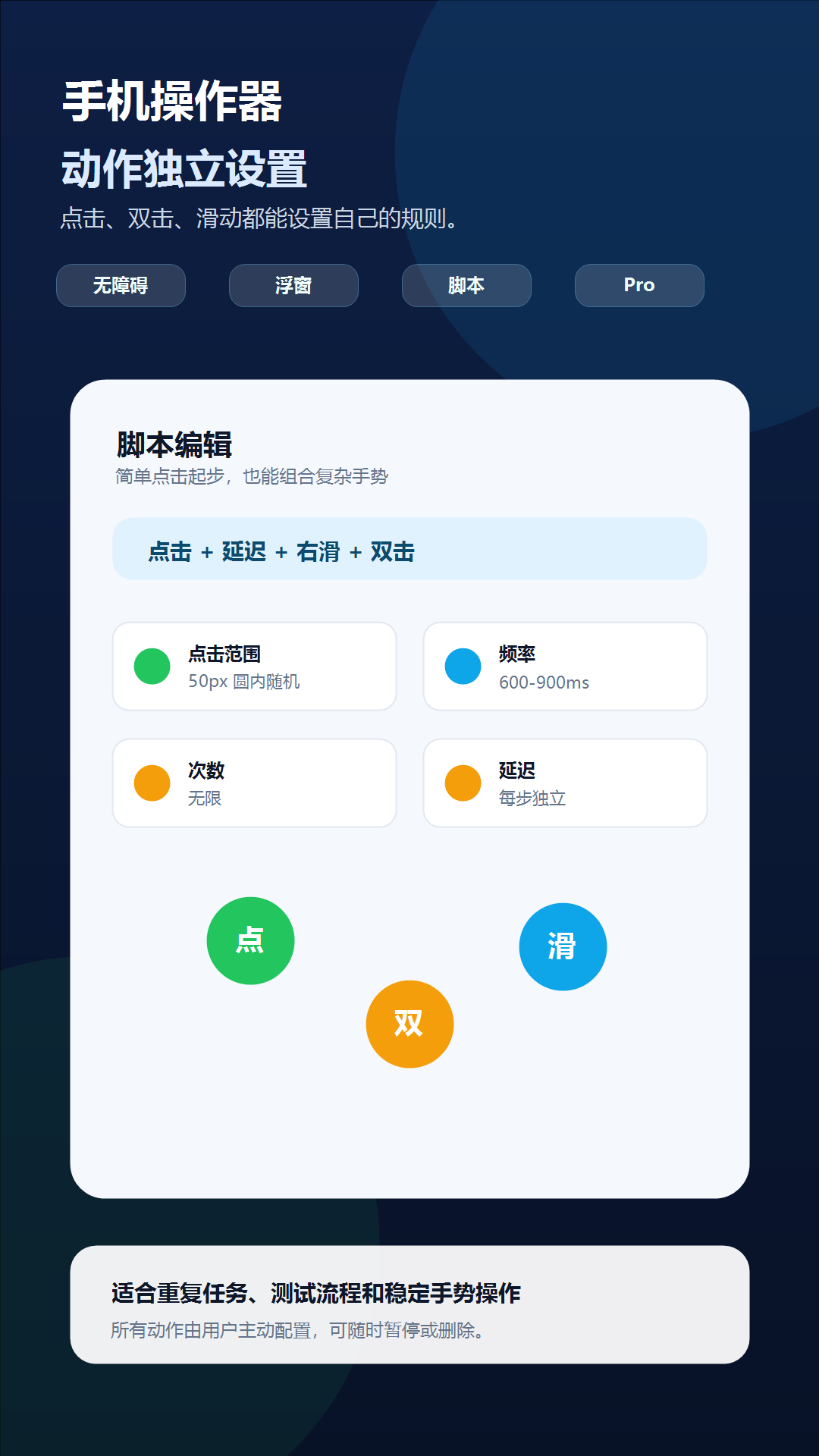
In a Pro script, place a delay between a swipe and a tap that depends on newly revealed content. The correct delay depends on the target app's animation, device speed, and network state.
Test each swipe and tap separately, then run the combined sequence once at a slow pace. If the destination can vary, stop and reposition instead of assuming the next control is always in the same place.
Check one variable at a time
Troubleshooting
- If the page barely moves, increase swipe distance or shorten an overly slow duration.
- If the page flings too far, reduce distance or use a longer, more controlled duration.
- If nothing moves, confirm the marker starts inside a scrollable region and Accessibility Service is enabled.
- If a system back or home gesture triggers, move the marker farther from the display edge.
- If the next action runs too early, increase the per-step delay after the swipe.
Safety boundary
Use automation responsibly
A swipe can reveal a different control under a later tap. Test the complete sequence after any target-app update or layout change.
Do not automate payment, purchase, transfer, account-security, privacy-consent, or CAPTCHA screens. Do not use Phone Operator for fake engagement, cheating, bypassing safeguards, or any action that violates the rules of the target app. Stop whenever the screen is different from the one you tested.
Common questions
Questions about automate swipes on android
Which swipe directions are supported?
Phone Operator supports upward, downward, left, and right swipes.
Does the swipe marker move during playback?
No. It indicates direction and configured length but remains stationary while the gesture is dispatched.
Can I mix swipes and taps?
Yes, with Pro scripts. Add deliberate delays wherever the screen must finish moving or loading.