
Permission transparency
How Phone Operator works
Phone Operator works without root on Android 8+. Its Accessibility Service executes only user-configured gestures after you start them. The overlay is used for controls and markers, so you can position an action and keep Start, Pause, and Stop available above the target app.
Phone Operator does not collect, store, or upload screen content. Action positions, timing, ranges, and saved scripts remain on the device. Review the full privacy policy before enabling permissions.
Start deliberately
Practical steps
- 1Pause before repositioningStop the run so the target screen and floating marker are both stable and draggable.
- 2Set the tap range to zeroUse a center-only tap while calibrating. A nonzero range deliberately allows points anywhere inside the visible circle.
- 3Place the marker centerDrag the numbered tap marker until its center sits well inside a large, harmless target rather than on an edge or label.
- 4Run one slow finite testUse one repeat and a conservative interval, then add range or more actions only after the center tap succeeds repeatedly.
Visible geometry
The marker center is the zero-range tap point
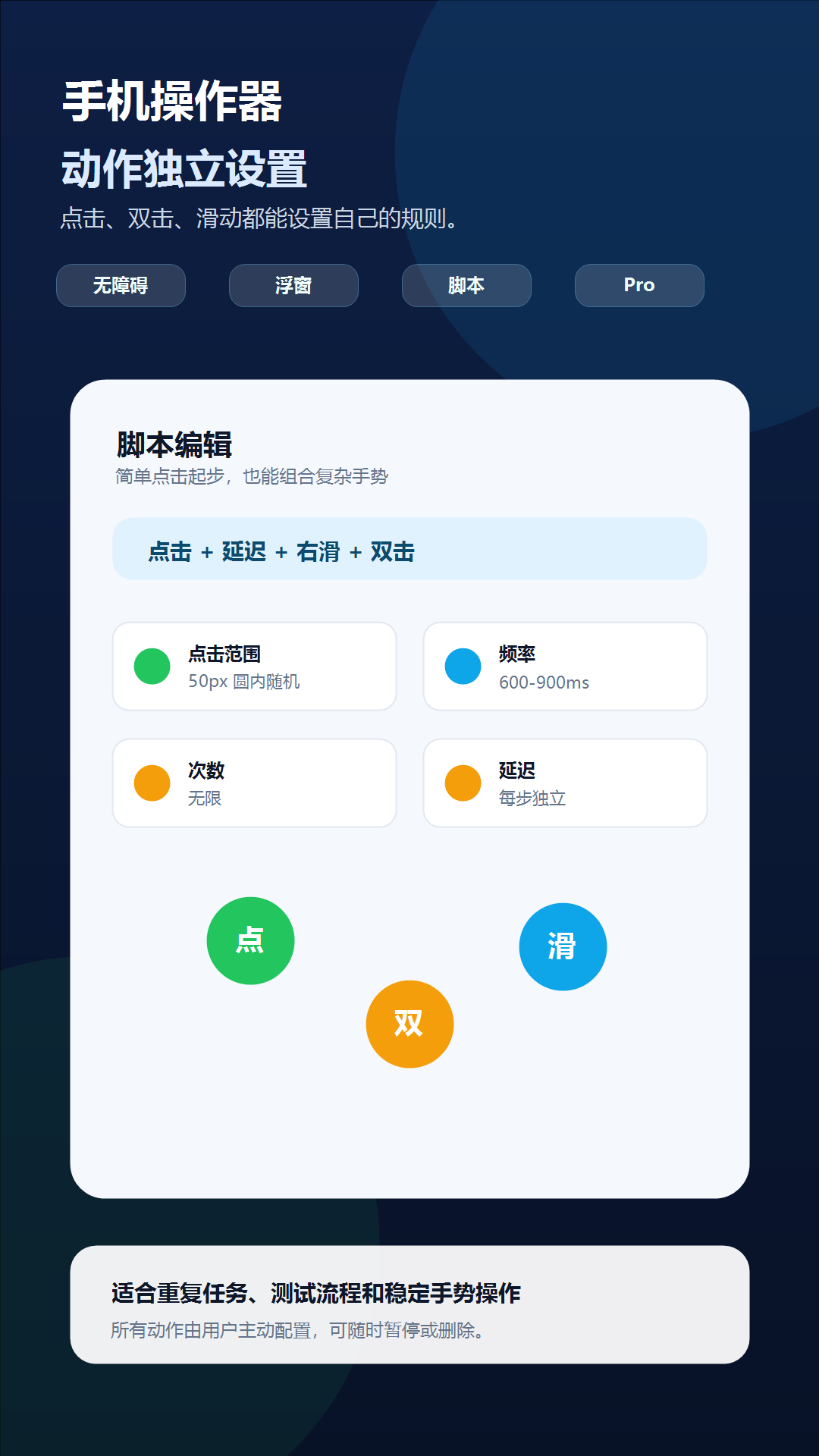
Phone Operator stores each action as a relative screen position and displays its tap range as a circle. With a range of zero, the gesture targets the marker center. With a nonzero range, a point is selected inside that circle, so every part of the visible area must be safe to tap.
A control can look large while only part of it accepts input. Start near its visual center and keep the whole range circle away from neighboring controls, scroll bars, system navigation, and screen edges.
Coordinate stability
Rotation, scaling, keyboards, and animation can move the target
Recalibrate after rotating the device, changing display size, entering split screen, opening a keyboard, or updating the target app. Relative coordinates adapt to screen dimensions, but they cannot know that a button moved within a changed layout.
If the target appears after loading or animation, add delay before the tap instead of moving the marker to compensate for a temporary frame. Test the action only when the final screen state is visible.
Target response
A correctly placed gesture can still be ignored
A disabled control, covered dialog, changing list row, protected screen, or target app that rejects automated input can ignore a correctly placed gesture. Confirm that an ordinary manual tap works at the same moment before changing Phone Operator settings.
When the target accepts manual input but misses fast automated taps, increase the action duration or interval and retest one finite action. Do not use speed to hide an unresolved placement or loading problem.
Check one variable at a time
Troubleshooting
- Tap lands outside the intended area: set range to zero and recenter the marker before restoring a smaller circle.
- Only some random taps fail: the range circle overlaps a non-clickable or unsafe area; reduce its diameter.
- Tap shifts after rotation or split screen: stop, reopen the final layout, and reposition the affected marker.
- Tap fires before the control appears: add delay before that action and test the transition again.
- Manual tap also fails: the target is disabled, covered, protected, or not ready; do not try to bypass that state.
- One action works but a script misses later: test the failing step alone, then restore the preceding step with a longer delay.
Safety boundary
Use automation responsibly
Calibrate on a harmless screen and keep the run supervised. A larger range increases the set of possible targets and should never overlap a sensitive or irreversible control.
Do not automate payment, purchase, transfer, account-security, privacy-consent, or CAPTCHA screens. Do not use Phone Operator for fake engagement, cheating, bypassing safeguards, or any action that violates the rules of the target app. Stop whenever the screen is different from the one you tested.
Common questions
Questions about fix an android auto clicker tapping the wrong spot
Where does a zero-range tap land?
It targets the center of the numbered tap marker.
Can a random tap leave the visible circle?
Phone Operator selects the point within the configured visible tap circle, subject to the physical screen boundary.
Why did an accurate marker stop matching after rotation?
The target app may have rearranged its layout. Stop and recalibrate on the final orientation instead of continuing with stale positions.