
Permission transparency
How Phone Operator works
Phone Operator works without root on Android 8+. Its Accessibility Service executes only user-configured gestures after you start them. The overlay is used for controls and markers, so you can position an action and keep Start, Pause, and Stop available above the target app.
Phone Operator does not collect, store, or upload screen content. Action positions, timing, ranges, and saved scripts remain on the device. Review the full privacy policy before enabling permissions.
Start deliberately
Practical steps
- 1Measure the safe area visuallyPlace the marker at the center of the intended control and leave room between its circle and every edge.
- 2Set a small rangeIncrease the radius only while the entire visible circle remains inside the intended tap target.
- 3Choose an interval windowSet minimum and maximum timing that both give the target app enough time to respond.
- 4Run a short finite testWatch several generated taps, confirm every point stays useful, and stop if the screen layout changes.
Visible boundary
Treat the circle as the complete possible area
Phone Operator visualizes each tap range as a circle centered on the marker. Randomized points are selected within that circle, not beyond it. A larger radius therefore needs a larger, stable target underneath.
Use zero range when precision matters more than variation. Use a small range only when all points inside the circle are equivalent and harmless. Recheck the boundary after rotation, display scaling, split-screen changes, or target-app updates.
Timing window
Both ends of the interval must be safe
The shortest interval must still allow the previous action to finish, while the longest interval must remain acceptable for the workflow. Random timing cannot compensate for a target app that changes state unpredictably.
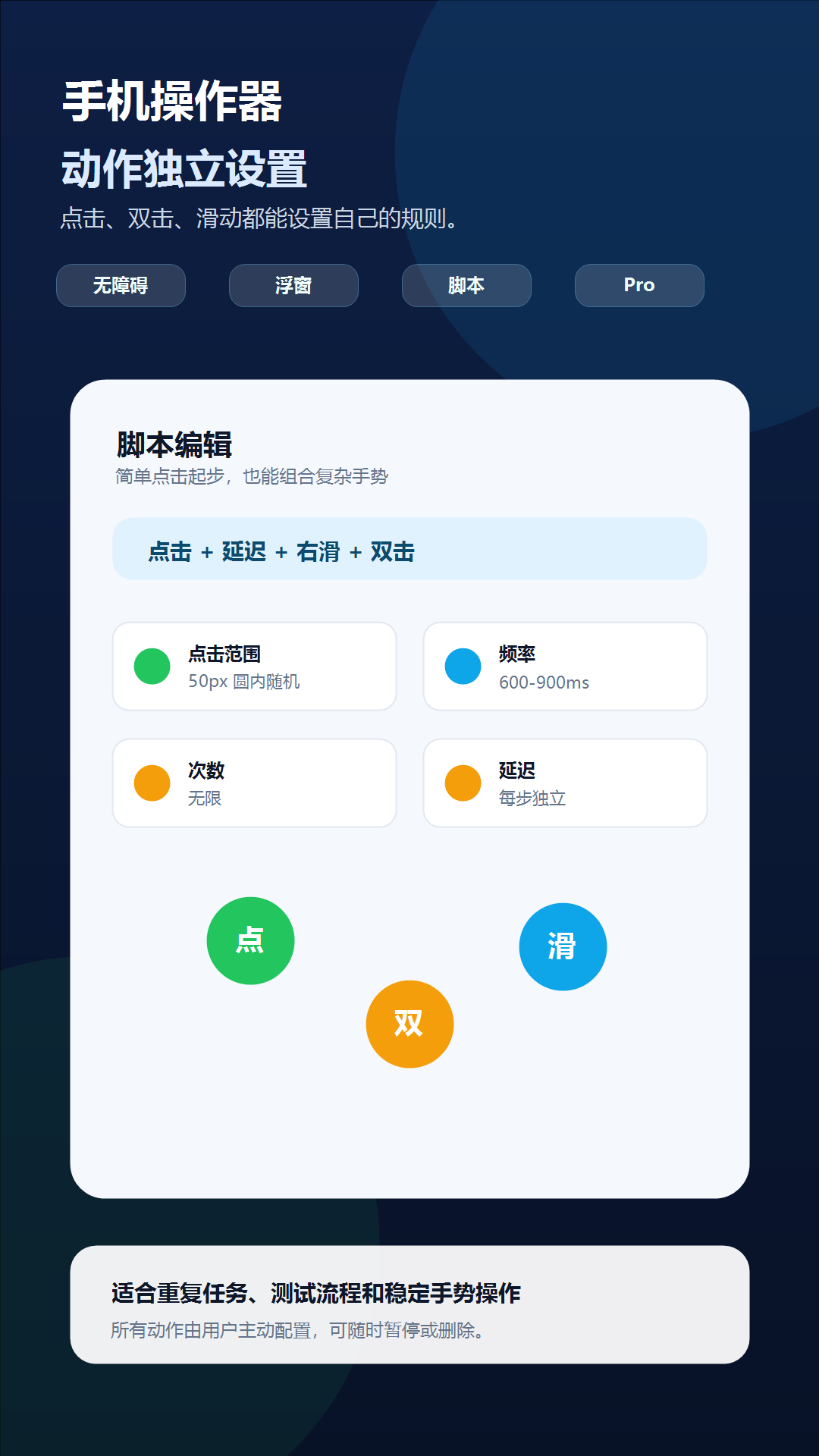
For mixed Pro scripts, each action can keep its own timing and range. Add a separate fixed delay after navigation or loading steps instead of relying only on a broad random interval.
Check one variable at a time
Troubleshooting
- If taps land near an unwanted control, reduce the radius or move the center farther from that edge.
- If some taps are ignored, increase the minimum interval and confirm the target is enabled throughout the full window.
- If behavior changes after rotation or zoom, stop and reposition the marker before restarting.
- If the visible circle is partly off-screen, reduce the range or choose a safer center point.
- If the next script action starts before a page settles, add an explicit per-step delay.
Safety boundary
Use automation responsibly
Randomization expands the set of possible tap locations and times. Use it only where every point and every interval in the configured range is acceptable.
Do not automate payment, purchase, transfer, account-security, privacy-consent, or CAPTCHA screens. Do not use Phone Operator for fake engagement, cheating, bypassing safeguards, or any action that violates the rules of the target app. Stop whenever the screen is different from the one you tested.
Common questions
Questions about set a random tap range and interval
Can a random tap fall outside the circle?
Phone Operator selects the randomized point within the visible circle around the marker.
Should every tap use a random range?
No. Use zero range for compact or sensitive targets and add variation only when the entire circle is safe.
Can each action use different timing?
Yes. Each action can be configured independently, including its interval and delay.