
Permission transparency
How Phone Operator works
Phone Operator works without root on Android 8+. Its Accessibility Service executes only user-configured gestures after you start them. The overlay is used for controls and markers, so you can position an action and keep Start, Pause, and Stop available above the target app.
Phone Operator does not collect, store, or upload screen content. Action positions, timing, ranges, and saved scripts remain on the device. Review the full privacy policy before enabling permissions.
Start deliberately
Practical steps
- 1Verify Pro entitlementMulti-point and mixed gesture scripts require Pro. Use an active one-time purchase or valid temporary Pro period before adding more than one tap point.
- 2Start with one tapPlace one visible marker over a stable target and confirm its timing and range before adding another action.
- 3Add the second pointAdd another action, keep its marker clearly separated from nearby controls, and set its own interval, delay, and visible range.
- 4Test each transitionRun one short finite loop, watch every marker, and increase the delay before any action that follows navigation, animation, or loading.
Per-point control
Each point can use its own settings
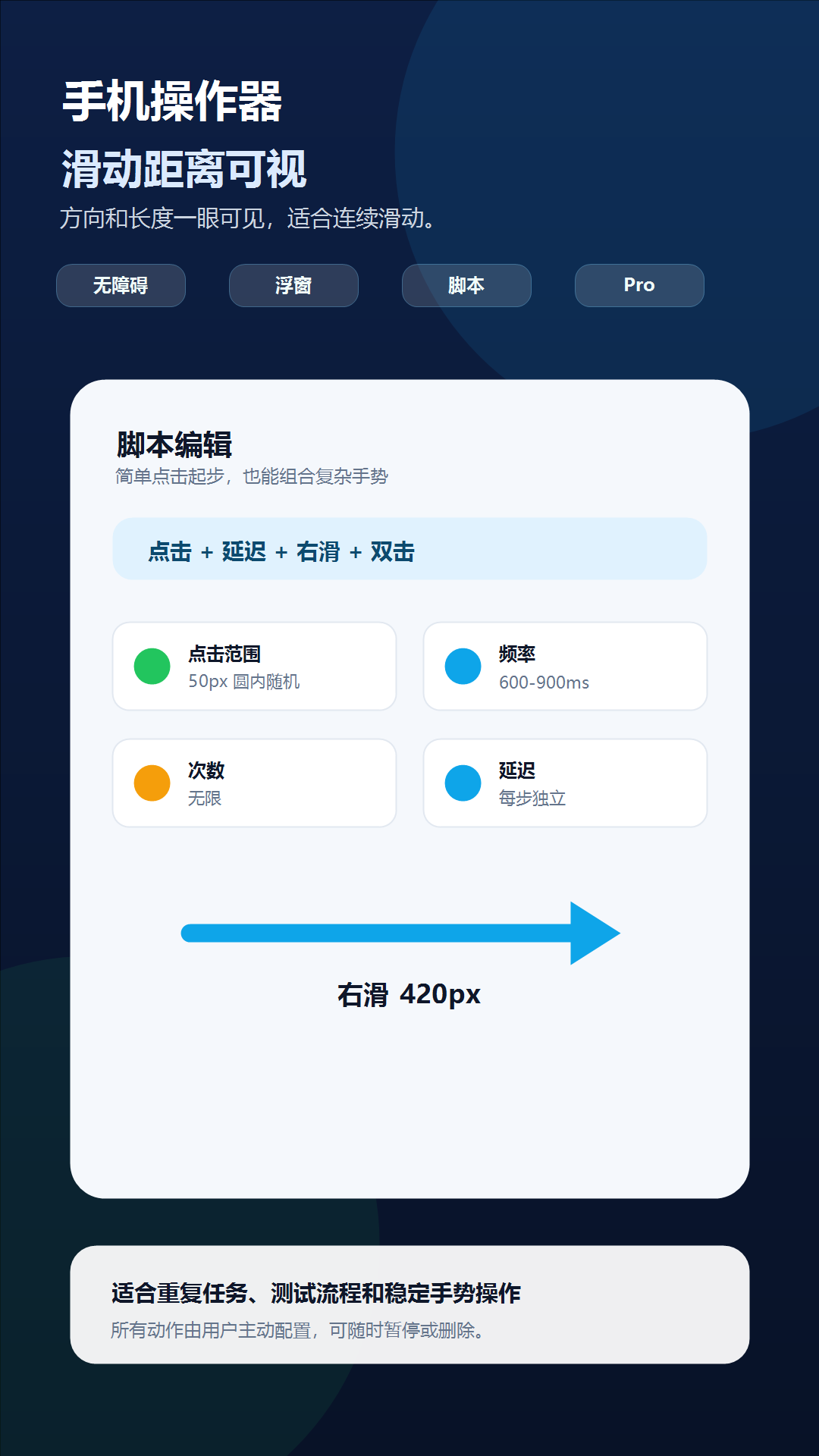
A compact button may need zero range, while a large stable target can tolerate a visible random area. Phone Operator stores timing, delay, range, duration, and repeat behavior on each action instead of applying one profile to every point.
Use the delay after an action when the next step depends on the screen having settled. A swipe that reveals content usually needs more delay than a tap on an already visible control.
Marker layout
Keep ranges from overlapping unrelated controls
Every tap marker shows its action type and its configured random range. Keep the whole circle inside the intended control and away from neighboring buttons, scroll edges, navigation gestures, and protected input areas.
Randomized points are selected inside the visible circle. If the circle overlaps another control, reducing the radius is safer than assuming the random point will stay in the useful part.
Entitlement boundary
Free mode remains one tap point
The free version supports one simple tap action with unlimited repeats by default. Pro adds multiple points, double taps, directional swipes, mixed-action scripts, and script sharing. Watch five rewarded ads to unlock two hours of Pro, or make the one-time Google Play purchase for lifetime Pro.
When temporary Pro expires, the app revalidates the saved script and removes unavailable Pro-only steps so a free user cannot keep using an expired multi-point or mixed-action script.
Check one variable at a time
Troubleshooting
- A second point does nothing: verify Pro is active and that every script action still passes entitlement validation.
- The wrong control is activated: stop, reduce overlapping ranges, and reposition each marker after the layout settles.
- A script stops at the same transition: increase that action's delay and test the pair alone.
- Markers disappear after switching apps: recheck Display over other apps and restore the floating controller.
- Temporary Pro expired: reopen the saved script and confirm the app normalized it back to the free single-tap boundary.
- Target positions changed after rotation, keyboard, or display scaling: stop and rebuild the markers on the final layout.
Safety boundary
Use automation responsibly
More points mean more places where a changed screen can cause an unwanted result. Keep every marker inside a stable, harmless control and stop when the target layout changes.
Do not automate payment, purchase, transfer, account-security, privacy-consent, or CAPTCHA screens. Do not use Phone Operator for fake engagement, cheating, bypassing safeguards, or any action that violates the rules of the target app. Stop whenever the screen is different from the one you tested.
Common questions
Questions about automate multiple tap points on android
Can the free version use multiple tap points?
No. Free mode supports one simple tap action. Pro adds multiple points, double taps, directional swipes, and mixed scripts.
Can every point use different settings?
Yes. Each action keeps independent interval, delay, random range, duration, and repeat behavior.
Can a randomized tap leave its visible circle?
No. Phone Operator selects randomized tap points inside the visible circle around the marker.
What happens when temporary Pro expires?
The saved script is revalidated and Pro-only steps are removed, so a free user cannot keep using more than one simple tap point.