
Permission transparency
How Phone Operator works
Phone Operator works without root on Android 8+. Its Accessibility Service executes only user-configured gestures after you start them. The overlay is used for controls and markers, so you can position an action and keep Start, Pause, and Stop available above the target app.
Phone Operator does not collect, store, or upload screen content. Action positions, timing, ranges, and saved scripts remain on the device. Review the full privacy policy before enabling permissions.
Start deliberately
Practical steps
- 1Activate ProDouble tap is a Pro action. Use an active one-time purchase or valid temporary Pro period before adding it to a script.
- 2Add one double tapChoose Double tap in the action editor and place its labeled marker over a stable, non-sensitive control.
- 3Tune press and gapStart with the default timing, then change the press duration or the 30-5000 ms gap only when the target interface needs it.
- 4Run one finite testUse a short repeat count, keep Stop visible, and confirm both taps are recognized before adding another action.
Two timing controls
Separate the double tap gap from the next action delay
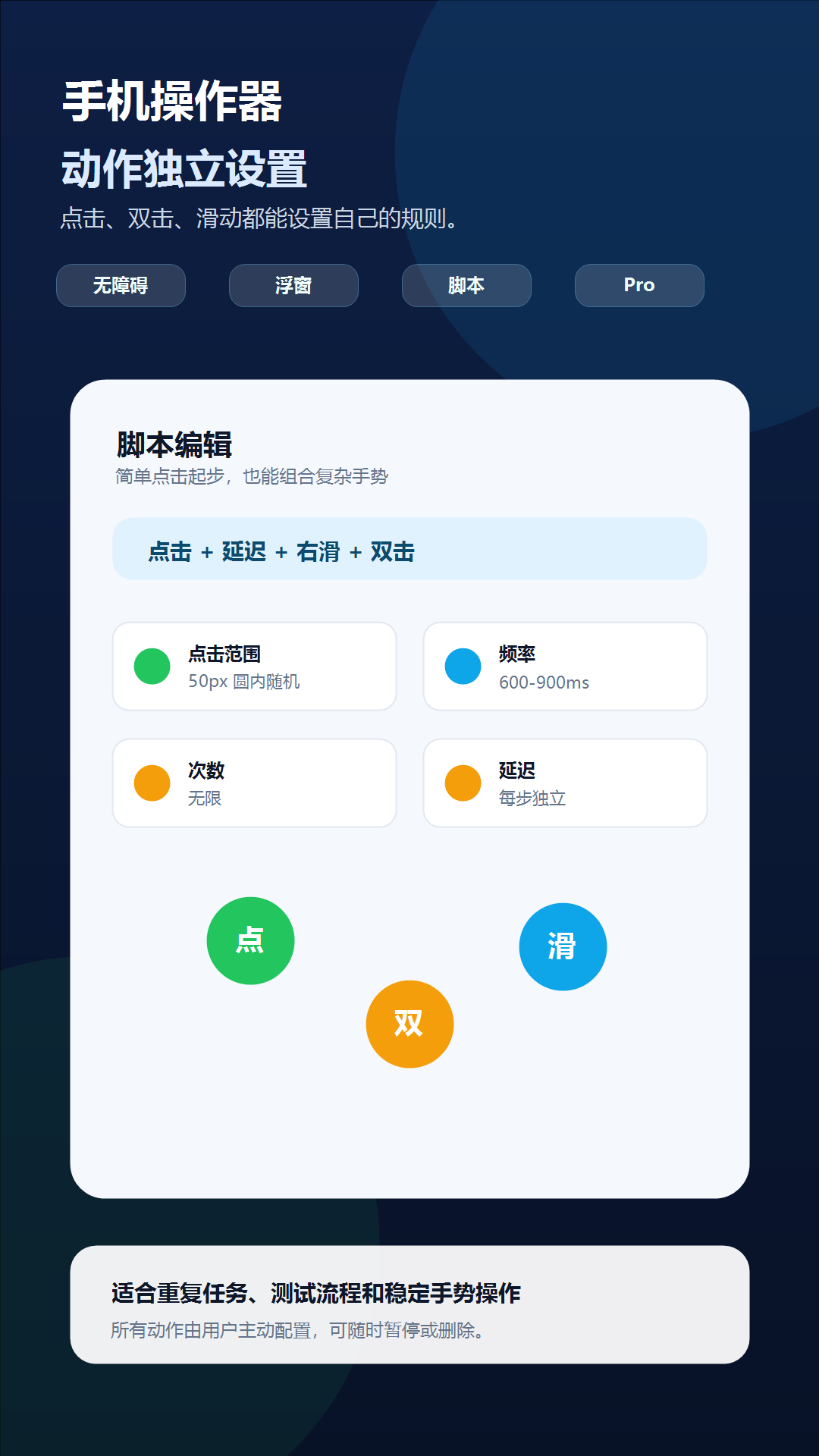
The double tap gap is the pause between the first and second tap. Phone Operator accepts a gap from 30 to 5000 milliseconds. A gap that is too long may be interpreted as two independent taps, while an extremely short gesture may not suit every target interface.
The per-action delay controls what happens after the double tap, before the next script step or loop begins. Increase that delay when the screen opens a page, starts an animation, or needs network content to settle.
Stable placement
Keep the full marker inside one control
Both taps use the same generated point for that double tap. If a range is enabled, the point is chosen within the visible circle. Keep the whole circle inside the intended control so neither tap can land on a neighboring action.
Start with zero range for compact controls. Reposition the marker after rotation, split-screen changes, display scaling, keyboard appearance, or any target-app layout update.
Check one variable at a time
Troubleshooting
- If neither tap occurs, recheck Accessibility Service and restart from the visible floating controller.
- If only one tap is recognized, test a different double tap gap and confirm the target actually supports double tap.
- If the next action starts too early, increase the delay after the double tap rather than stretching the gap between its two taps.
- If the wrong control is activated, stop immediately and reduce the range or reposition the marker after the layout settles.
- If Pro has expired, double tap playback remains unavailable until Pro is active again; free mode supports one simple tap action.
Safety boundary
Use automation responsibly
Use double tap only on a stable, reversible screen. Do not automate payments, account security, verification challenges, artificial engagement, or actions prohibited by the target app.
Do not automate payment, purchase, transfer, account-security, privacy-consent, or CAPTCHA screens. Do not use Phone Operator for fake engagement, cheating, bypassing safeguards, or any action that violates the rules of the target app. Stop whenever the screen is different from the one you tested.
Common questions
Questions about automate double taps on android
Is double tap available in the free version?
No. Double tap and mixed-action scripts require Pro. Free mode supports one simple tap action with unlimited repeats.
What is the difference between gap and delay?
Gap is the pause between the two taps. Delay is the pause after the completed double tap before the next action or loop.
Do the two taps use different random points?
No. Each double tap selects one point inside the visible configured range and uses that same point for both taps.